How can I use e-signatures in EBYS? [Windows - Step Three: How can I download the DSClient application?]
Download the DSClient software (version 2.5.0) from this link and complete the installation process.
IMPORTANT NOTES:
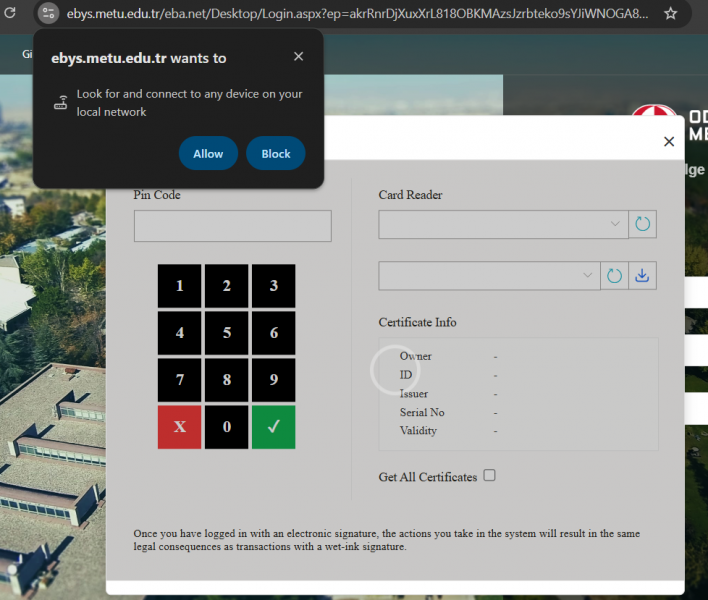
1- If you are using EBYS with Chrome and your computer's Chrome version is above 138, you should grant the requested permission and select Allow in the following warning you may receive regarding DSclient. This permission can also be controlled in Chrome settings via Settings -> Privacy and Security -> Site settings -> ebys.metu.edu.tr -> Local network access -> Allow. If this permission is denied, your browser will not be able to access the DSClient application and will give a DSClient not installed error when the e-signature window opens. There is no known problem in other browsers such as Edge, Firefox, etc. If an error occurs in the Chrome browser, the e-signature process can be tried with a different browser.
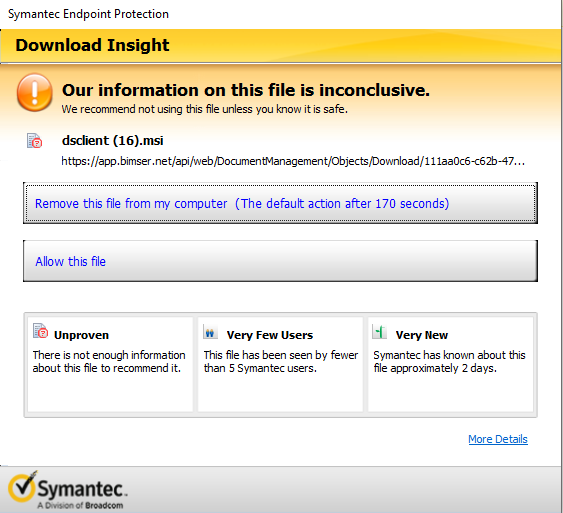
2- If your antivirus detects the file as suspicious, allow the file to run.
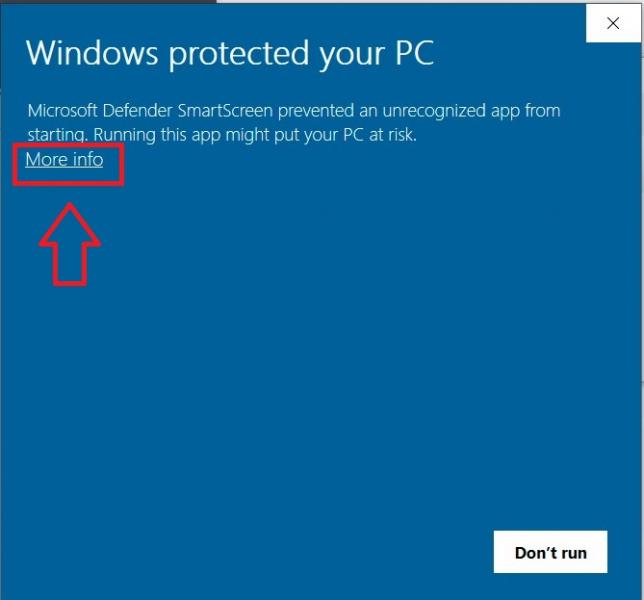
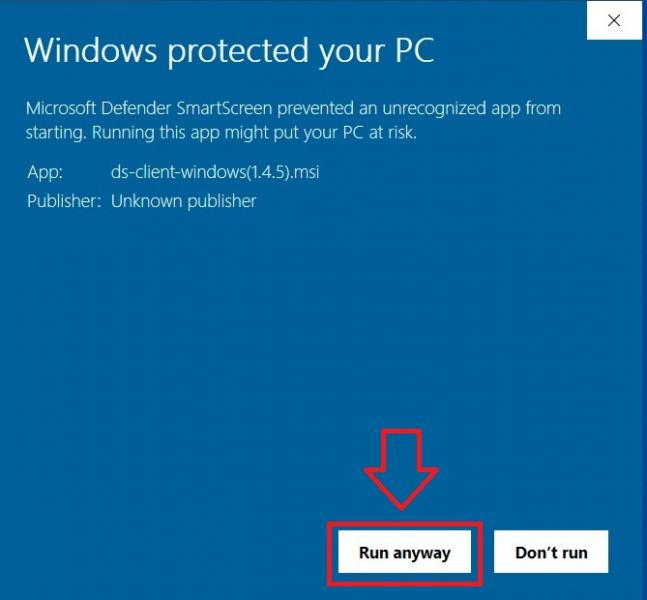
3- If a warning like the one below appears in Microsoft Defender during installation, you should click "More info" and continue with the "Run Anyway" option.
If you still have problems while using e-signatures in EBYS after following the steps above, or have other questions about e-signatures, you can look at the frequently asked questions in https://faq.cc.metu.edu.tr/groups/e-signature.
Questions about EBYS can be directed to ebys-destek@metu.edu.tr.